Installation#
SenHub Agent is a monitoring collector that runs on your infrastructure and collects metrics from various sources (servers, applications, network devices). It installs as a system service and runs in the background.
System Requirements#
| Platform | Versions | Architecture |
|---|---|---|
| Windows | Server 2016+, Windows 10+ | x64 |
| Linux | RHEL 7+, Ubuntu 18.04+, Debian 10+ | x64, ARM64 |
Resource requirements: 1 CPU core, 512 MB RAM, 500 MB disk space.
Network requirements (online mode only): The agent needs outbound HTTPS access to the SenHub platform for configuration synchronization and metrics delivery. In offline mode, no outbound connections are required.
Obtaining the Agent#
Contact SenHub support (support@senhub.io) or download from the GitHub releases page. You will receive:
- The agent binary for your platform (see naming convention below)
- An authentication key (UUID format) for online mode
- A license token (required for premium probes: Citrix, NetScaler, Redfish, etc.)
Binary Naming Convention#
Release artifacts include the OS and architecture in the filename:
| Platform | Binary filename |
|---|---|
| Windows x86_64 | senhub-agent_windows_amd64.exe |
| Linux x86_64 | senhub-agent_linux_amd64 |
| Linux ARM64 | senhub-agent_linux_arm64 |
| macOS Intel | senhub-agent_darwin_amd64 |
| macOS Apple Silicon | senhub-agent_darwin_arm64 |
The instructions below assume you have renamed the binary to senhub-agent.exe (Windows) or senhub-agent (Linux/macOS) after download. If you prefer to keep the original name, substitute it in every command (e.g. .\senhub-agent_windows_amd64.exe install …).
Windows Installation#
1. Prepare the binary#
Download senhub-agent_windows_amd64.exe, then copy it to your installation directory and rename it for convenience:
mkdir C:\SenHub
Copy-Item .\senhub-agent_windows_amd64.exe C:\SenHub\senhub-agent.exe
If you prefer to keep the original filename, replace senhub-agent.exe with senhub-agent_windows_amd64.exe in every command below.
2. Install the service#
Open a PowerShell terminal as Administrator and run:
cd C:\SenHub\
.\senhub-agent.exe install --authentication-key YOUR-UUID-KEY
This registers SenHub Agent as a Windows Service with automatic restart on failure.
For offline mode (local configuration only, no connection to SenHub platform):
.\senhub-agent.exe install --offlineTo install with HTTPS enabled on the API:
.\senhub-agent.exe install --offline --enable-https --https-port 84433. Start the service#
.\senhub-agent.exe start4. Verify the installation#
.\senhub-agent.exe statusYou can also check the health endpoint:
Invoke-WebRequest -Uri "http://localhost:8080/health"Expected response:
{"status":"ok","version":"0.1.87","uptime":"1m30s","probes_active":2,"metrics_cached":12}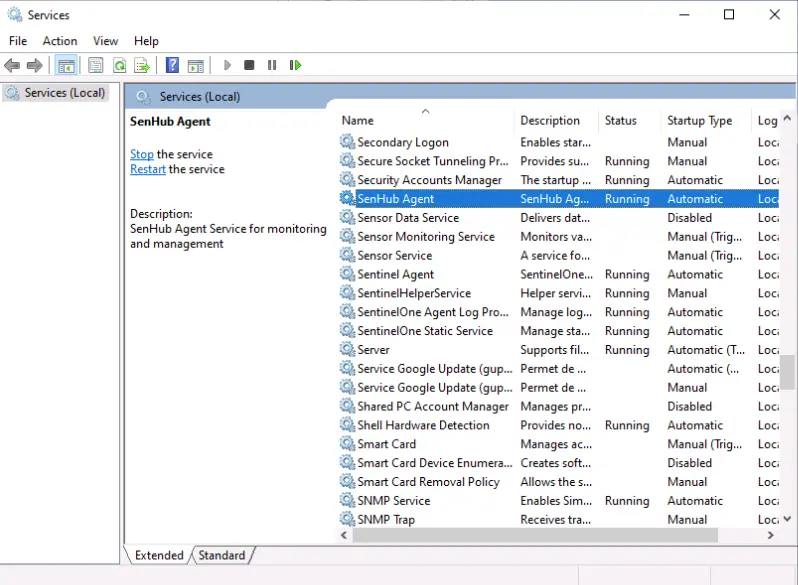
Log file location#
Windows logs are stored at:
%ProgramData%\SenHub\logs\senhubagent.logTypically: C:\ProgramData\SenHub\logs\senhubagent.log
Log rotation: 10 MB max per file, 5 backup files, 30-day retention, compressed.
Linux Installation#
1. Prepare the binary#
Download the binary for your architecture (senhub-agent_linux_amd64 or senhub-agent_linux_arm64), then rename it to senhub-agent for convenience:
sudo mkdir -p /opt/senhub/bin
sudo cp senhub-agent_linux_amd64 /opt/senhub/bin/senhub-agent
sudo chmod +x /opt/senhub/bin/senhub-agent
If you prefer to keep the original filename, replace senhub-agent with senhub-agent_linux_amd64 (or _arm64) in every command below.
2. Install the service#
sudo /opt/senhub/bin/senhub-agent install --authentication-key YOUR-UUID-KEYThis creates and registers a systemd service (senhub-agent.service) with automatic restart on failure (10-second delay between restarts).
For offline mode:
sudo /opt/senhub/bin/senhub-agent install --offlineTo install with HTTPS enabled and a custom certificate hostname:
sudo /opt/senhub/bin/senhub-agent install --offline \
  --enable-https \
  --https-hosts "agent.company.com,192.168.1.100" \
  --https-port 8443
3. Start the service#
sudo /opt/senhub/bin/senhub-agent start4. Verify the installation#
sudo /opt/senhub/bin/senhub-agent statusOr check the health endpoint:
curl http://localhost:8080/healthLog file location#
Linux logs are stored at:
/var/log/senhub/senhubagent.logIf this directory is not writable, logs fall back to the binary directory.
Log rotation: 10 MB max per file, 5 backup files, 30-day retention, compressed.
Installation Options#
The install command accepts the following options:
Authentication#
| Flag | Description |
|---|---|
--authentication-key KEY | Agent authentication key (UUID) for online mode |
--offline | Install in offline mode (local configuration only) |
Configuration#
| Flag | Default | Description |
|---|---|---|
--config-path PATH | ./agent-config.yaml | Path to the configuration file |
--server-url URL | SenHub platform | Custom server URL (online mode) |
HTTPS / TLS#
| Flag | Default | Description |
|---|---|---|
--enable-https | disabled | Enable HTTPS on the agent API |
--https-port PORT | 8443 | HTTPS listening port |
--https-hosts HOSTS | localhost,127.0.0.1 | Hostnames for the auto-generated certificate (comma-separated) |
--cert-file PATH | auto-generated | Path to a custom TLS certificate file |
--key-file PATH | auto-generated | Path to a custom TLS private key file |
--min-tls-version VER | 1.2 | Minimum TLS version (1.2 or 1.3) |
Logging#
| Flag | Description |
|---|---|
--verbose or -v | Enable verbose logging for all modules |
--filter MODULES | Filter debug logs by module prefix (implies verbose). Example: --filter probe.veeam |
Environment Variables#
These environment variables can be used as alternatives to command-line flags:
| Variable | Equivalent Flag |
|---|---|
SENHUB_KEY | --authentication-key |
SENHUB_SERVER_URL | --server-url |
What Happens During Installation#
When you run senhub-agent install, the agent:
- Checks for administrator/root privileges (required on Windows and Linux)
- Registers the system service (
SenHub Agenton Windows,senhub-agent.serviceon Linux) - Configures automatic restart on failure
- In offline mode: generates a default
agent-config.yamlfile with a unique agent key - If
--enable-httpsis specified: creates acerts/directory with a self-signed certificate and private key (valid for 365 days)
Files Created#
| File | Permissions | Description |
|---|---|---|
agent-config.yaml | 0600 (owner only) | Agent configuration file |
certs/agent-cert.pem | 0600 (owner only) | TLS certificate (if HTTPS enabled) |
certs/agent-key.pem | 0600 (owner only) | TLS private key (if HTTPS enabled) |
Service Management Commands#
The agent binary provides built-in service management:
| Command | Description |
|---|---|
senhub-agent install | Install the system service |
senhub-agent uninstall | Remove the system service and clean up files |
senhub-agent start | Start the service |
senhub-agent stop | Stop the service |
senhub-agent restart | Restart the service |
senhub-agent status | Show service status, health, and resource usage |
senhub-agent version | Show agent version and build information |
senhub-agent run | Run interactively in console mode (for debugging) |
senhub-agent config check | Validate configuration file |
senhub-agent update | Check for updates |
senhub-agent update --list | List available versions |
senhub-agent update VERSION | Install a specific version |
Console Mode#
The run command starts the agent interactively in the foreground (not as a service). This is useful for debugging:
senhub-agent run
senhub-agent run --verbose
senhub-agent run --filter probe.veeam
The agent auto-detects its mode from the configuration file. All logs are printed to the console. Press Ctrl+C to stop.
Use --filter to limit debug output to specific modules (see CLI Reference).
Updating the Agent#
Check for available updates:
senhub-agent update --listInstall a specific version:
senhub-agent update 0.1.87Post-Installation Checklist#
After installing and starting the agent, verify the following:
- The service is running:
senhub-agent status - The health endpoint responds:
curl http://localhost:8080/health - The web dashboard is accessible: open
http://localhost:8080/web/{key}/in a browser - Probes are collecting metrics: check the probes endpoint
curl http://localhost:8080/api/{key}/info/probes - The log file exists and is being written to
Next Steps#
After installation:
- Configure your monitoring probes (see Configuration)
- Activate your license if you have premium probes (see License section in Configuration)
- Set up HTTPS if required (see HTTP/HTTPS Configuration)
- Configure your monitoring system (PRTG, Nagios) to collect metrics (see Web Interface)
Uninstallation#
Windows:
.\senhub-agent.exe stop
.\senhub-agent.exe uninstall
Linux:
sudo /opt/senhub/bin/senhub-agent stop
sudo /opt/senhub/bin/senhub-agent uninstall
The uninstall command stops the service, removes the service registration, and cleans up generated files (configuration, certificates, logs).